
To schedule a course you need to logon to the admin section of the website, the website address is:
resource.maritimesimulation.co.ukThis will open this screen:
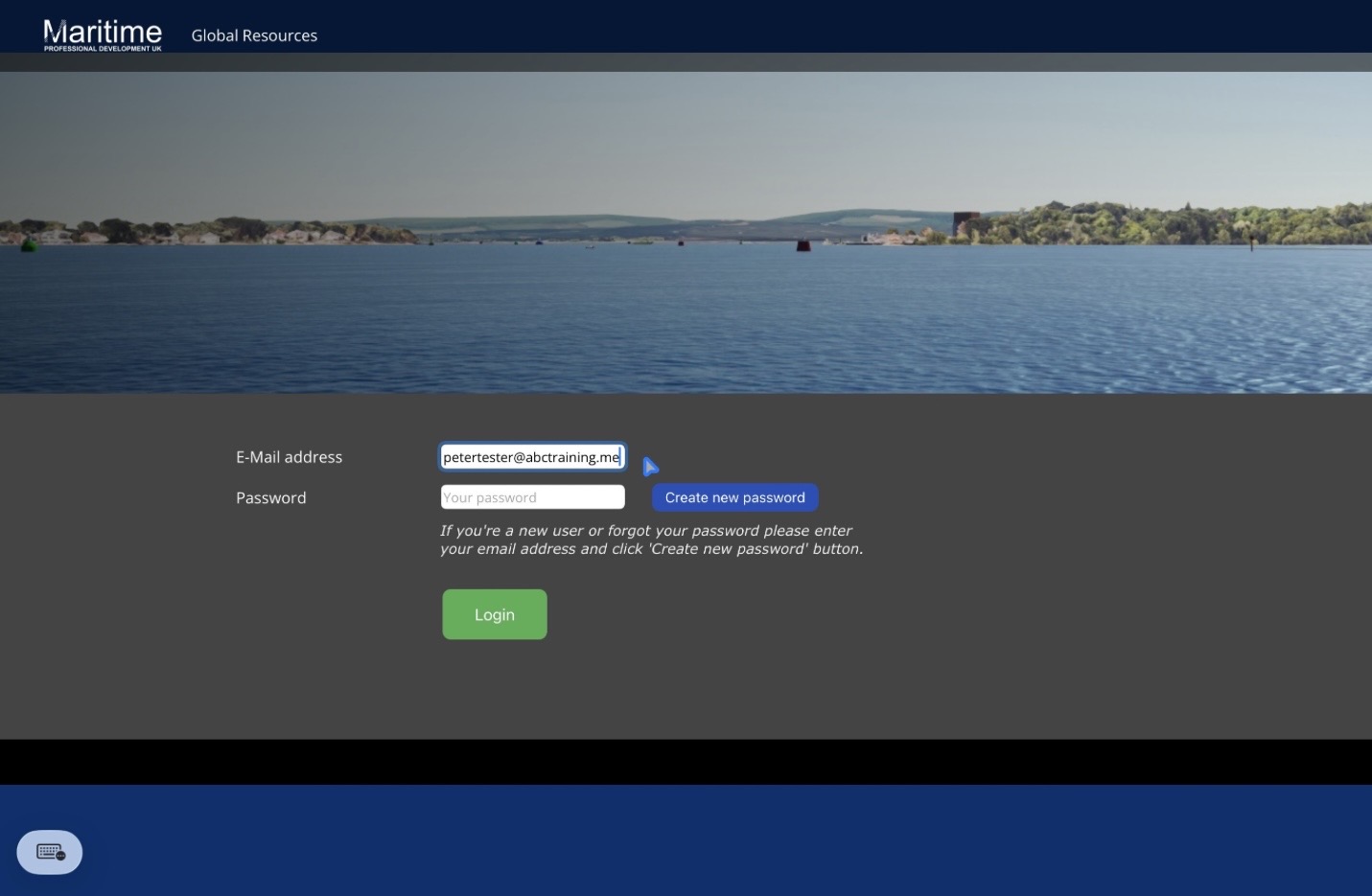
Logon using the email address that you set up your account with. If you cannot remember your password just undertake a password reset. Logging on will open this page:
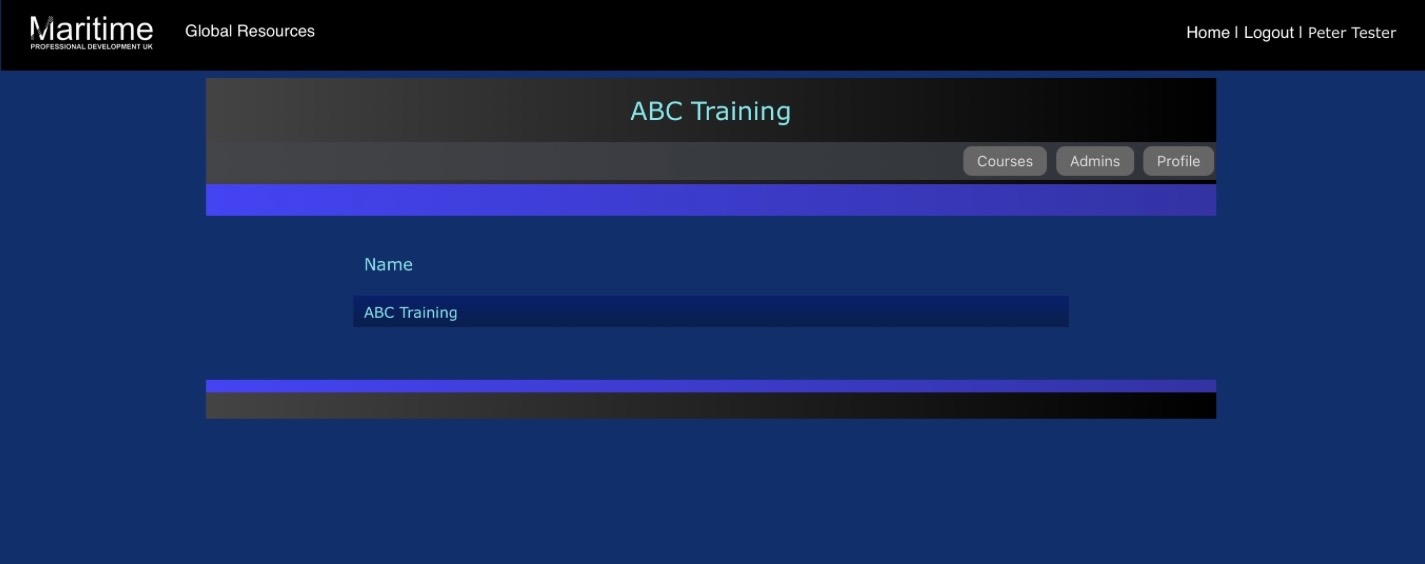
Click the ‘Courses’ button to open the page where you add courses. This will open this page:
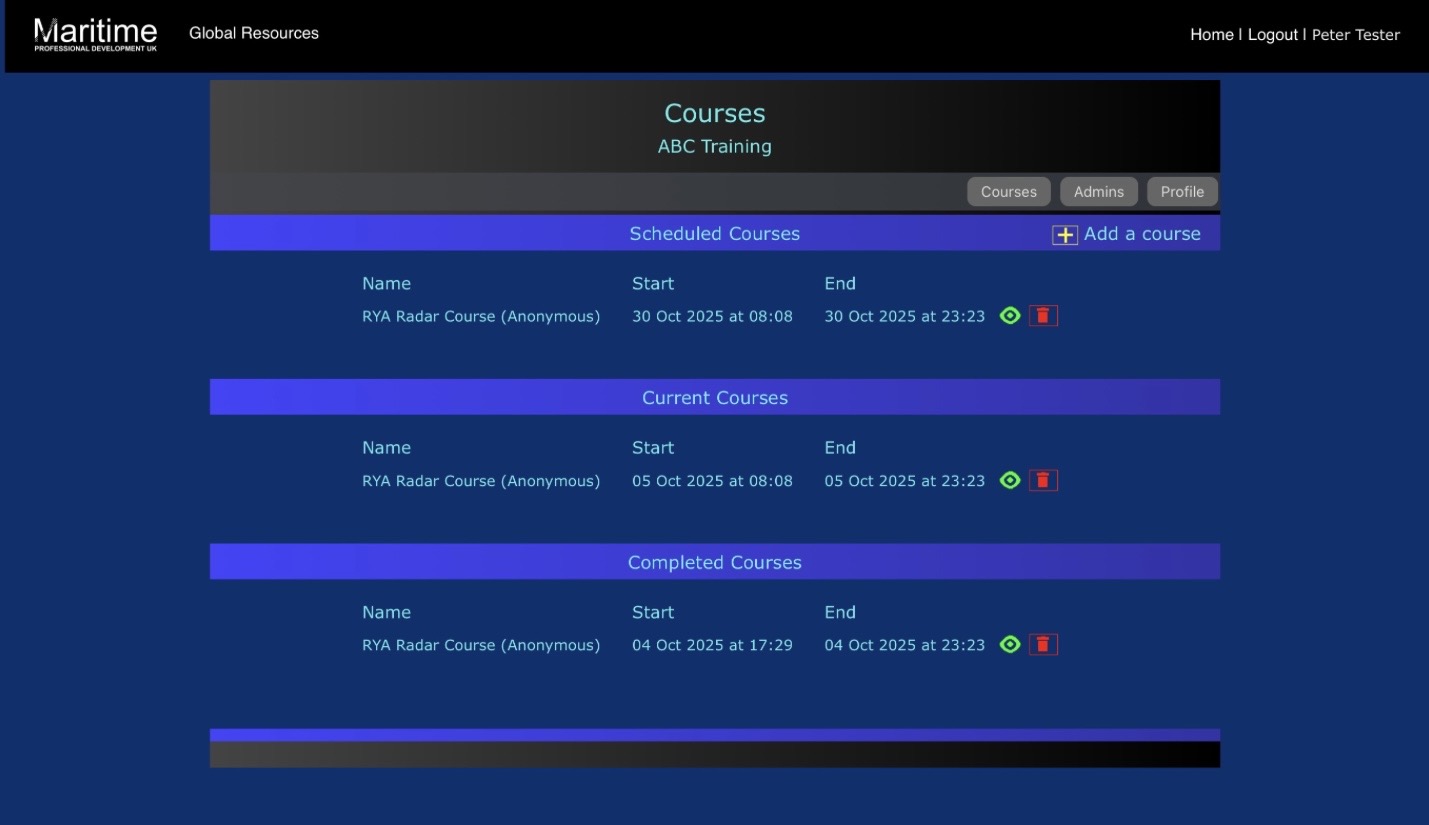
On this page you will see the courses you have run, are running or have scheduled. Click ‘Add a course’ to add a new course date. Doing so brings up this screen.
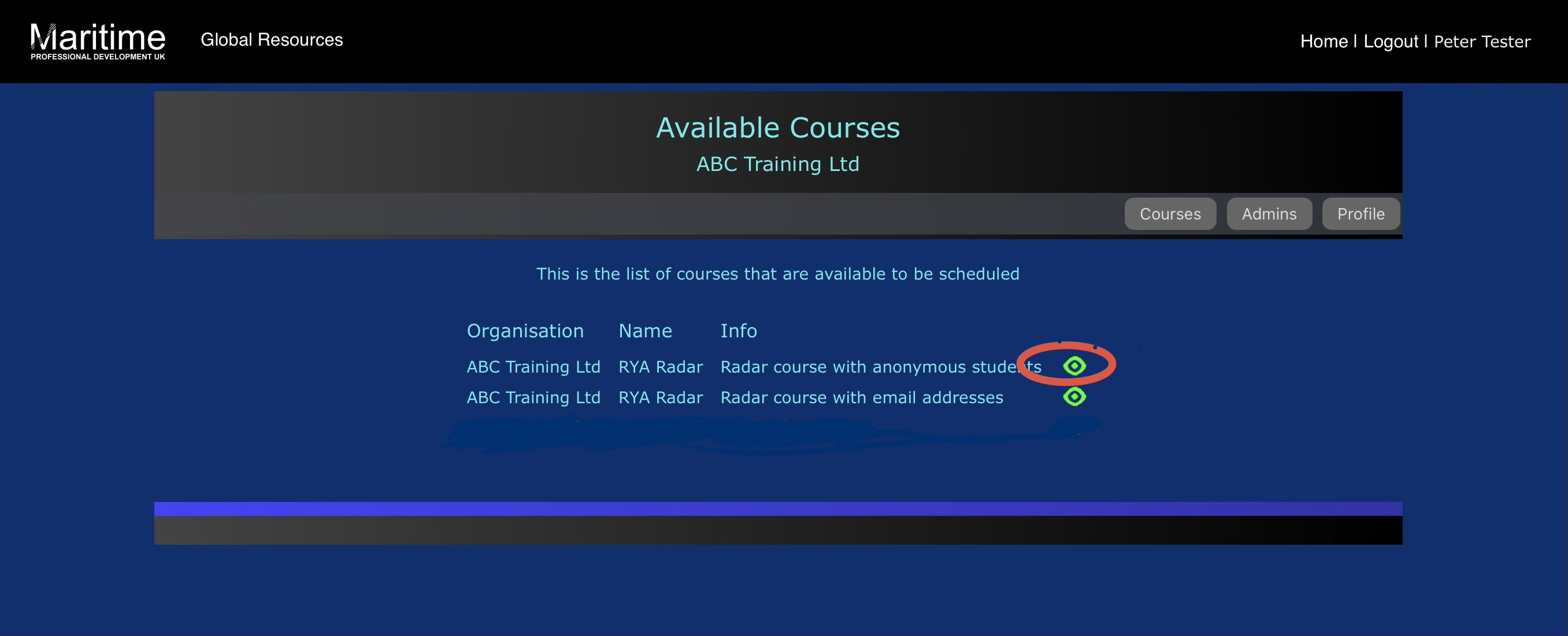
Select the Green icon to add a course with ‘Anonymous students’. This brings up this screen:
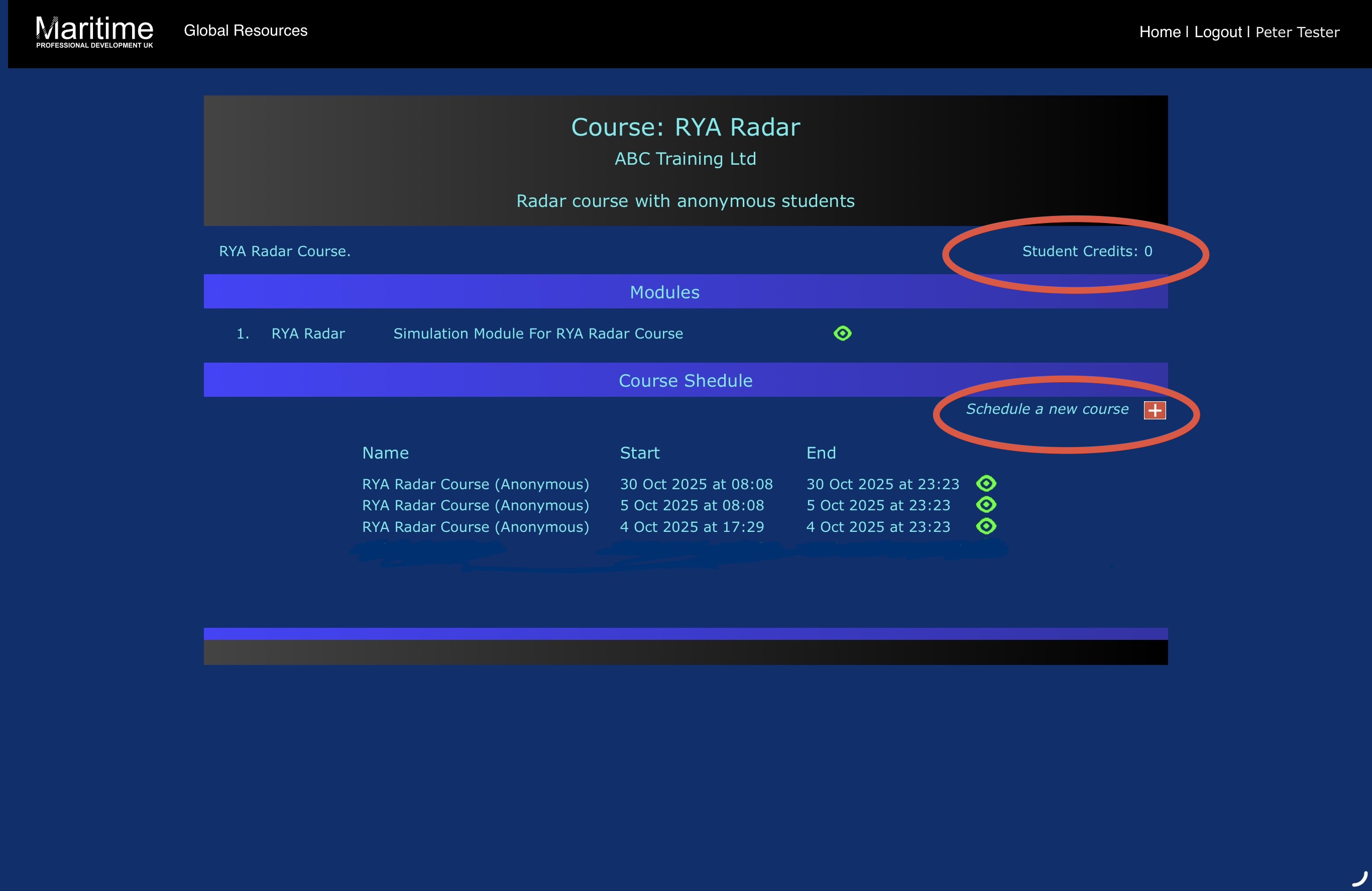
Here you will see the option to ‘Schedule a new course’ and also a note of how many ‘Student Credits’ you have available to add to the course.
If you need to purchase some student credits then you can do so via this link Purchase student course creditsSelecting ‘Schedule a new course’ will bring up this screen:
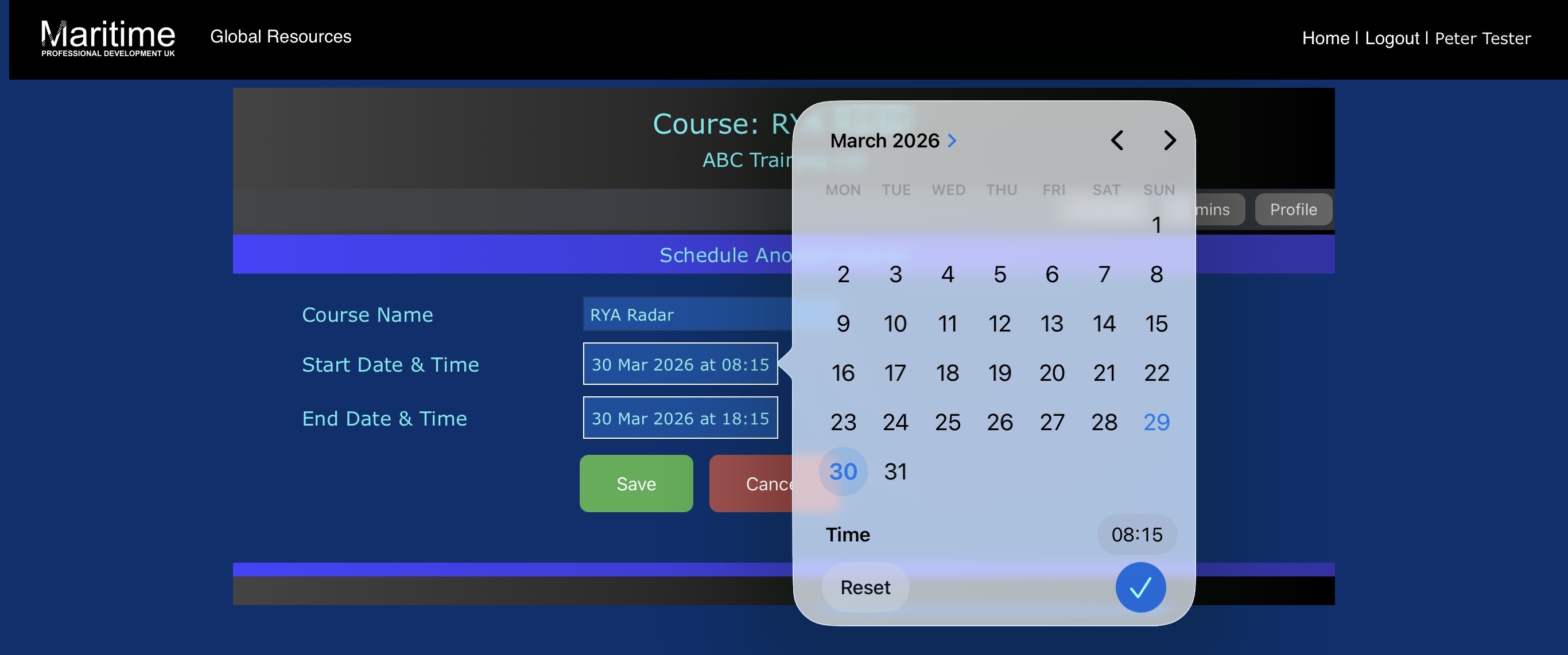
Select the start date and we suggest select 0815 for a 0900 course start. It makes sense to logon prior to students arriving to ensure everything is working fine. Select 1815 for the course finish time. Selecting ‘Save’ will bring up the course screen.
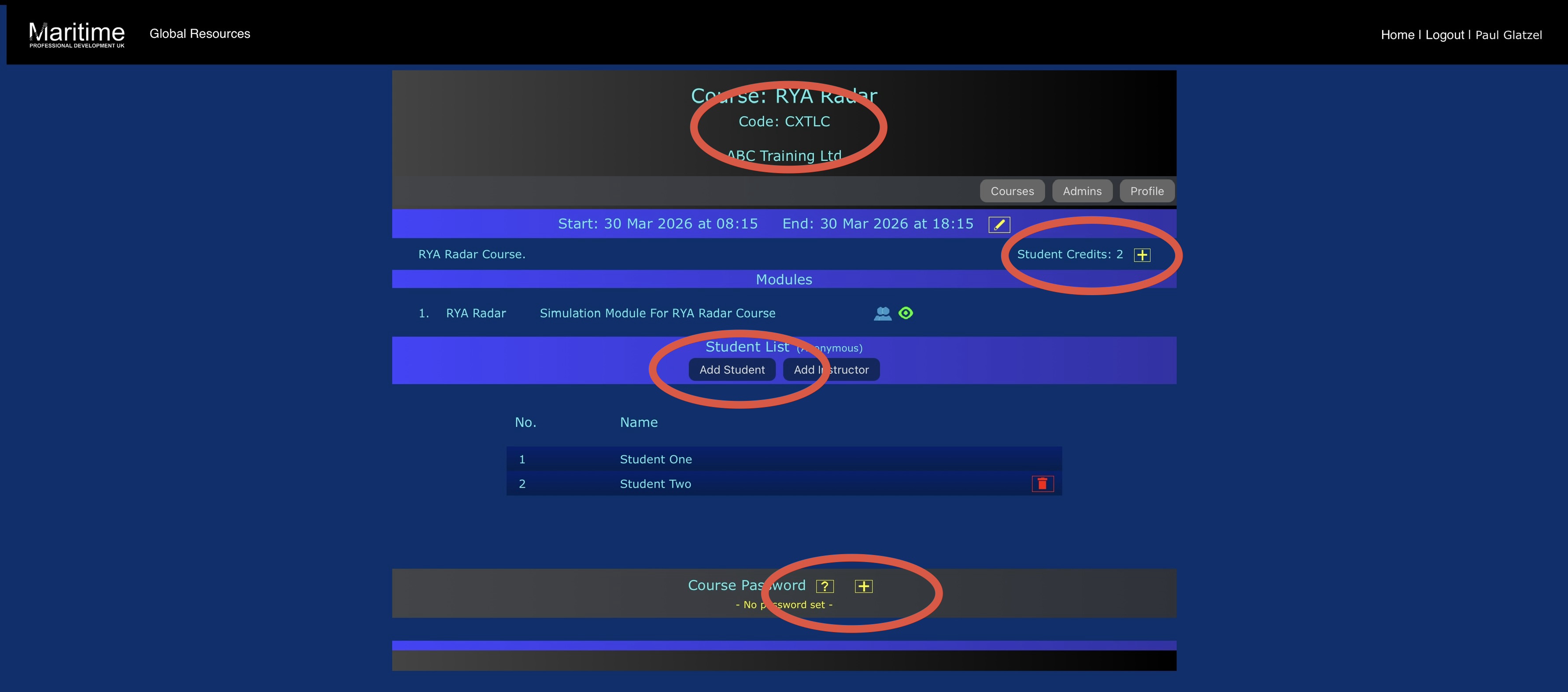
On this screen there are a number of really important bits of information.To set up the course select ‘Add student’ as many times as relevant. You can remove any students added in error here too.
Add a ‘Course password’ (keep it fairly simple as you will need to enter it for each student station) and a make a note of it as you will need it to log into the course on the morning of the course.
Note the ‘Course code’ as you will also need this.
On the morning of the course you will need to log students onto the course – follow these instructions to do so Logging students on the course